

My youngest daughter Mia was four years old when I handed her the LeapFrog LeapPad Academy for the first time. She had been watching her older brother on his Fire tablet and wanted her own screen time. I was not interested in handing a four-year-old unrestricted access to YouTube, so I started looking at dedicated learning tablets. The LeapPad Academy kept coming up, and after testing it in my second-grade classroom with a handful of students during indoor recess, I decided it was worth the investment.
The setup process is straightforward once you know the order of operations. Where parents tend to get stuck is the LeapFrog Learning Path account, the firmware update, and choosing which apps to prioritize. If you skip any of those steps or do them out of sequence, you end up with a frustrated kid and a tablet that feels limited. This guide walks you through the whole process, including the parental settings I use both at home with Mia and in my classroom.
Your child is ready to learn. Is the tablet ready to go?
The LeapFrog LeapPad Academy comes loaded with built-in games and supports hundreds of additional apps and cartridges. Most families see the best results when they load age-specific content before handing it over. Check the current price and bundle options on Amazon before setup day.
Amazon Check Today's Price on Amazon →Step 1: Charge Fully Before You Do Anything Else
This sounds obvious, but I have seen it trip up a lot of parents on Christmas morning and birthday weekends. The LeapPad Academy ships with a partial charge that is just enough to power on for initial setup, but not enough to get through the full firmware update. If the battery dies mid-update, the tablet can get stuck in a loading loop that requires a factory reset.
Plug in the included USB charging cable before you open anything else. Give it at least two hours before starting setup. While it charges, pull up the LeapFrog website on your phone or computer and create a free Learning Path account. You will need an email address and a password. The account is what ties your child's age and progress to the content recommendations, so it matters. I use a dedicated email for Mia's educational accounts so everything stays in one place and I can actually find the password a year later.
Once the battery is full, you will notice the green indicator light on the charge port stays solid. That is your signal to start.
Step 2: Power On and Complete the Firmware Update
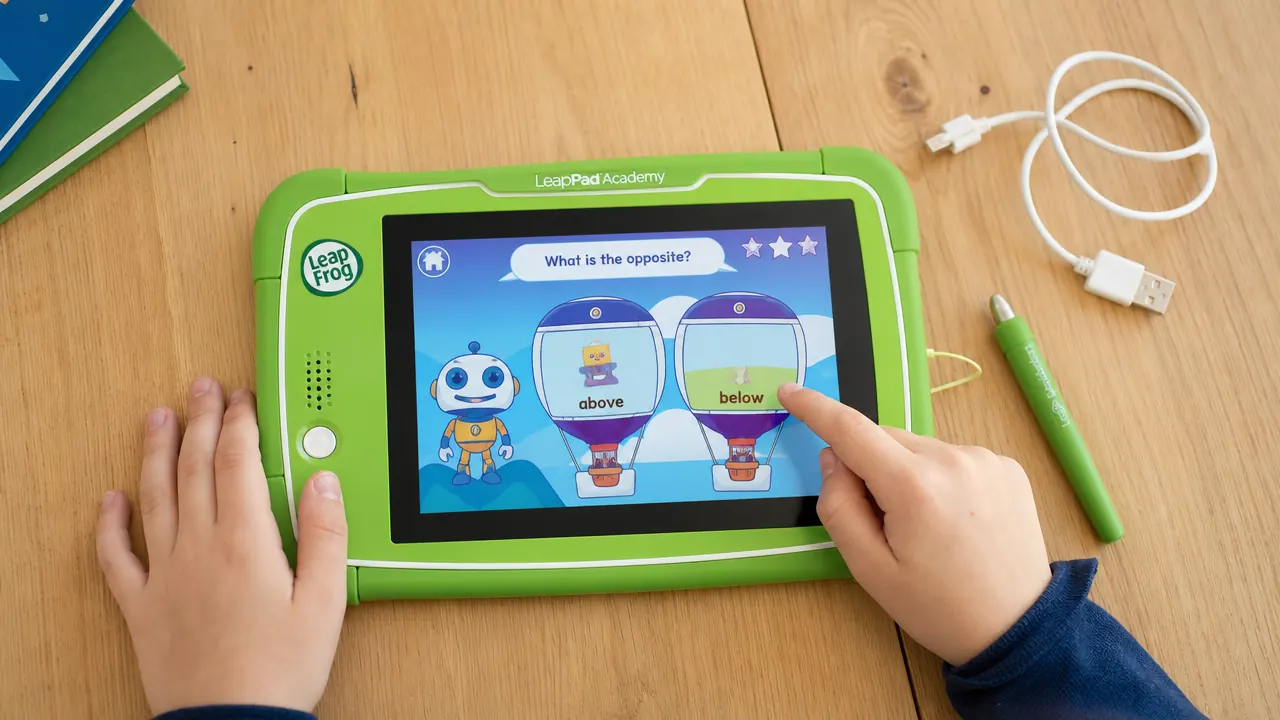
Press and hold the power button for about three seconds. The LeapFrog logo will appear, followed by a startup animation. On first boot, the tablet will prompt you to connect to your home Wi-Fi network. Use the stylus or your child's finger to tap the correct network from the list, then enter your password using the on-screen keyboard.
Once connected, the tablet will check for a firmware update automatically. If one is available, let it install. This usually takes five to ten minutes and the tablet will restart on its own. Do not press any buttons during this step. After the restart, the tablet will ask you to set up a LeapFrog Learning Path account or log into an existing one. Log in with the account you created during Step 1. You will then be prompted to create a child profile with your child's name, age, and the subjects you want to focus on. Be accurate with the age because this is what drives content recommendations across the entire system.

Step 3: Set Up Parental Controls Before You Hand It Over
Most parents skip this step in the excitement of getting the tablet to their child. I always do this step first, before Mia even sees the device. Go to the home screen, tap the lock icon in the upper corner, and enter the parent PIN. The default PIN is printed in the quick-start guide. Change it to something you will remember but your child will not guess. Avoid birthdays.
Inside the parental controls menu, you can set a daily time limit (I use 45 minutes on school days and 60 minutes on weekends), restrict which apps are visible, lock in-app purchasing, and require a PIN before any new app downloads. I also disable the camera-sharing feature for kids under five. It is not a major risk on a closed platform, but it removes one distraction layer. For classroom use, I disable the built-in music player during school hours because otherwise the kids spend the whole recess DJ-ing instead of reading.
Once you have saved your parental settings, exit the menu with the PIN and you are ready for content.

Step 4: Load Age-Appropriate Content First
The LeapPad Academy comes with several pre-installed apps including Letter Factory, Pet Pad Party, and a basic art studio. For ages three to five, those built-ins are a solid starting point. But the tablet supports hundreds of additional apps through the LeapFrog App Center, accessible from the home screen once you are connected to Wi-Fi.
Here is what I loaded for Mia at age four that got the most daily use: Letter Factory (already installed, great for phonics), Count and Add Math Center for early number sense, and Drawing and Painting Studio for creative downtime. If your child is five or older and approaching kindergarten or first grade, I would add Word Whammer for sight words and Leap Frog SG Explorer for basic geography and social studies. The platform also supports physical cartridge games, which are excellent for kids who respond better to tactile handling. We picked up a Disney Princess cartridge that Mia treated like a precious object, which significantly increased her investment in using the tablet carefully.
The image below shows a rough content roadmap by age that I put together based on what worked with Mia and the students I have tested apps with over two school years.
Step 5: Build a Screen Time Routine That Sticks
The biggest mistake I see parents make, and I made it myself at first, is treating the LeapPad as a screen-time filler for whenever the child is bored. That works short-term but burns out the novelty quickly. The kids who get the most educational value are the ones whose families build a small consistent routine around it.
What works for us: Mia gets the tablet for 30 minutes after school before outdoor time. She knows that is her window, so she sits down focused rather than grazing. I sometimes sit with her for the first five minutes and ask what she learned at the end of the session. Those conversations are some of my favorite kitchen-table moments because she is genuinely proud to explain the phonics concept or math problem she worked through. On weekends we have a longer learning session Saturday morning after breakfast, before the cats have fully commandeered the couch. Mia has started calling it her school tablet, which tells me the positioning is working.
In my classroom, I use a rotation model. Four kids at a time during a 20-minute station block while I work with small groups. Students know the LeapPad station is earned by finishing their worksheet quietly, which gives it a prestige factor that keeps them motivated.
What Else Helps the LeapPad Work Better
A few accessories and habits that have made a meaningful difference in our household and classroom. First, get a protective case if you do not already have one. The LeapPad Academy is reasonably sturdy for a kids tablet, but a silicone bumper case adds drop protection without adding much weight. Kids in my classroom have dropped these from table height onto linoleum without damage when they are cased. Second, keep a spare stylus somewhere the child cannot lose it. The included stylus is fine, but it is also small and disappears fast. A replacement costs almost nothing and saves an enormous amount of frustration. Third, check the LeapFrog App Center monthly. LeapFrog rotates in free app promotions regularly, so if you check in once a month you can build out a solid content library without spending extra.
If you want a deeper look at how the LeapPad Academy holds up over months of actual daily use, my full long-term review covers durability, content depth, and whether the investment made sense for Mia at the end of five months. And if you are weighing it against the Amazon Fire Kids tablet, the side-by-side comparison lays out every meaningful difference so you can pick the right device for your child's age and learning goals.
The families who get the most out of the LeapPad are the ones who set it up intentionally, not reactively. Twenty minutes on setup day saves twenty arguments over the next three months.
Ready to skip the setup headaches and get straight to the learning?
The LeapFrog LeapPad Academy is rated 4.4 stars by over 5,900 families and works out of the box for ages three through seven. Once you follow the steps above, most kids are engaged in their first learning session within 30 minutes of initial charge. See today's price and available bundles on Amazon.
Amazon Check Today's Price on Amazon →